1
Create a QR code on the Viewer
Create a QR code on the device that will receive the video.
 ViewSide Link
Real-time camera sharing
ViewSide Link connects two phones with a QR code, letting one work as the Camera and the other as the Viewer. Use it whenever you need a second screen for classes, work, assisted shooting, or close-up checking.
Create a QR code on the device that will receive the video.
As soon as you scan the code, live video appears on the Viewer.
Create a connection QR code on the phone sending the file.
Scan the QR code on the device receiving the file.
Once connected, you can see the Camera screen directly on the Viewer.
Once connected, the receiving device can accept the file selected when the QR code was created.
Use it right away for real situations like magnifying small text, checking outfit fit and your back view, inspecting under a car, looking under furniture, checking workout posture, or grooming.
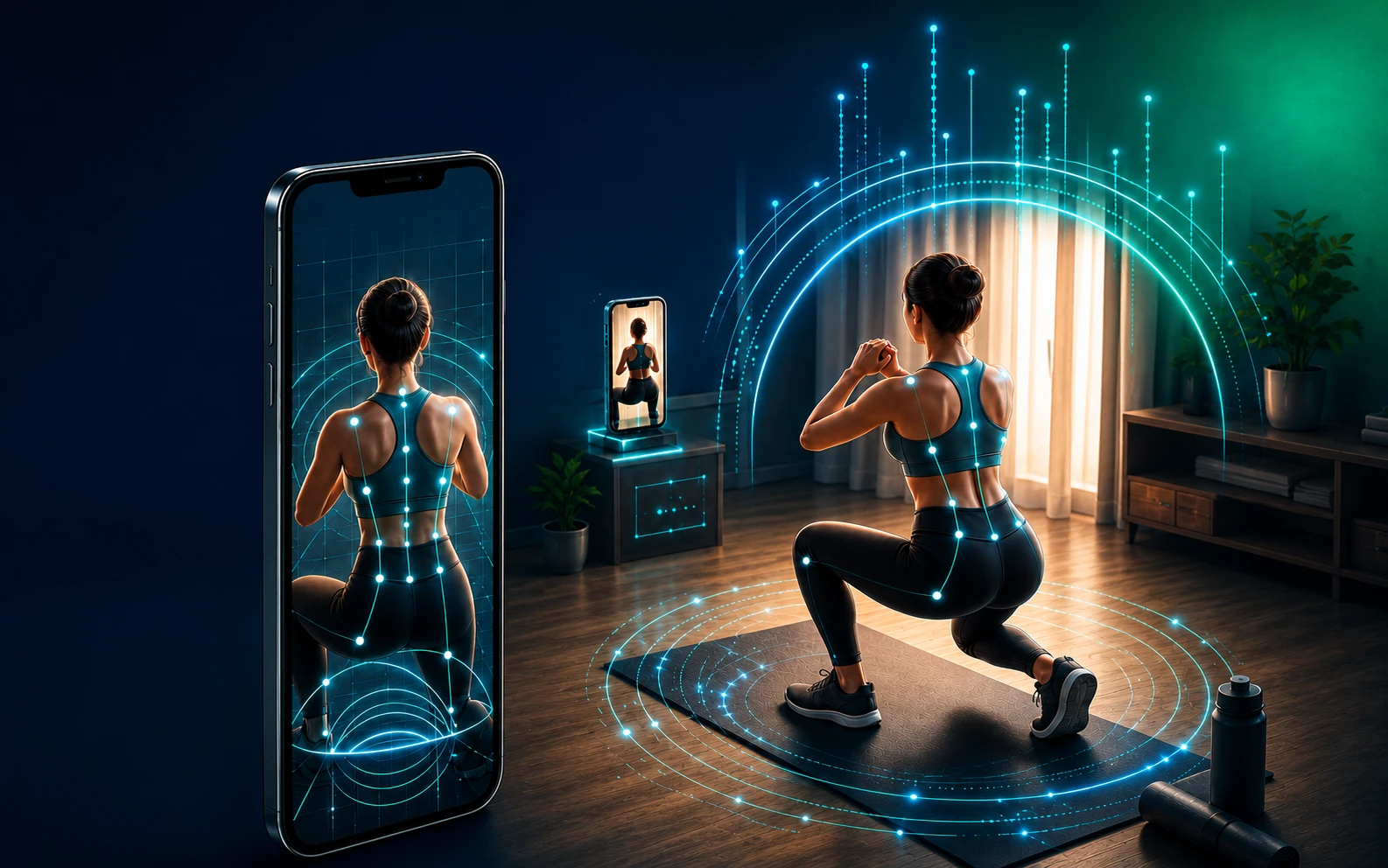
Even when working out alone at home, you can check your back, shoulders, hip line, and movement balance right away.

Check your back muscle lines and pose in real time, then capture it like someone else took the photo for you.
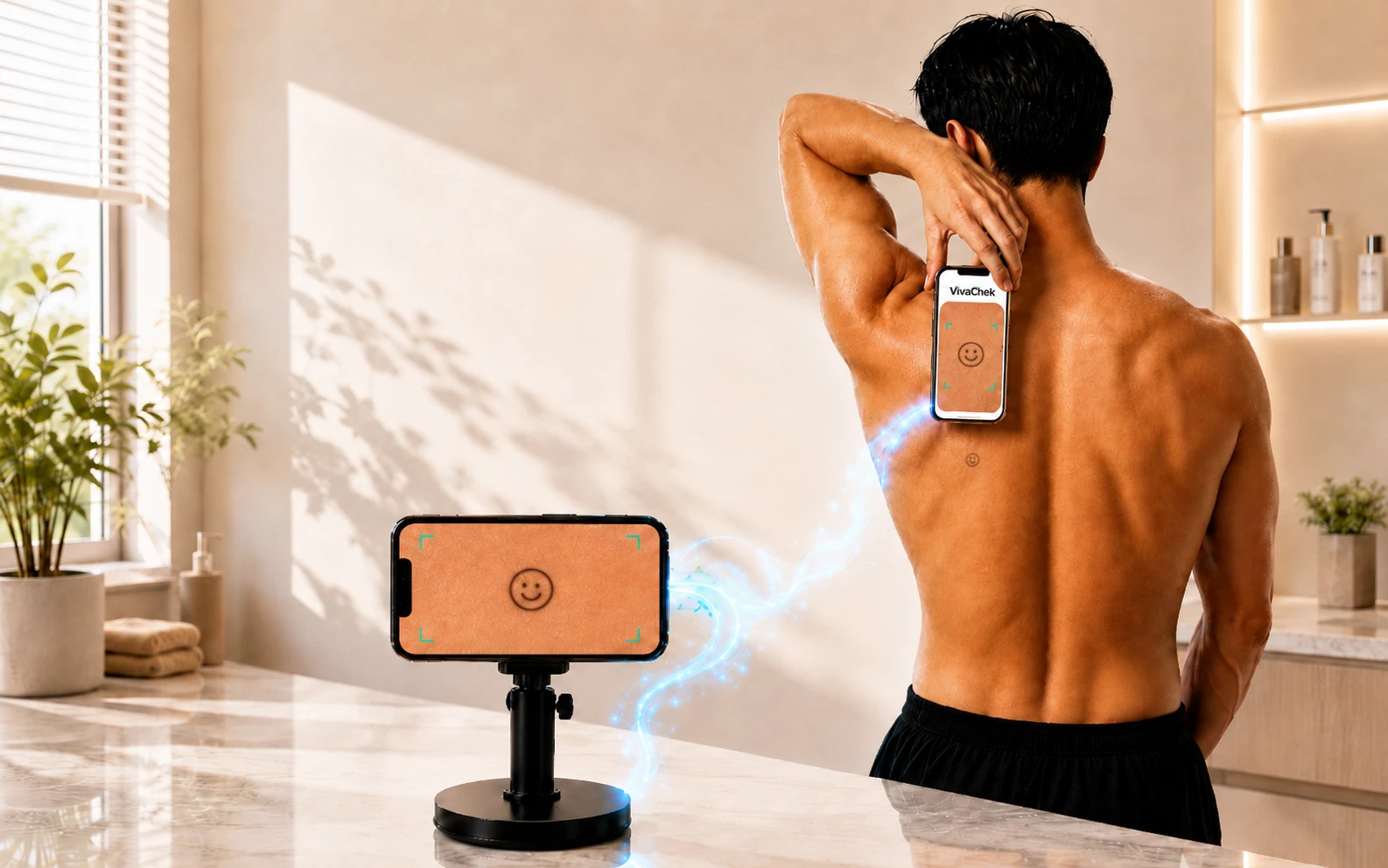
Even areas like your back that your hands can reach but your eyes cannot see can be checked more clearly than trying to look directly.
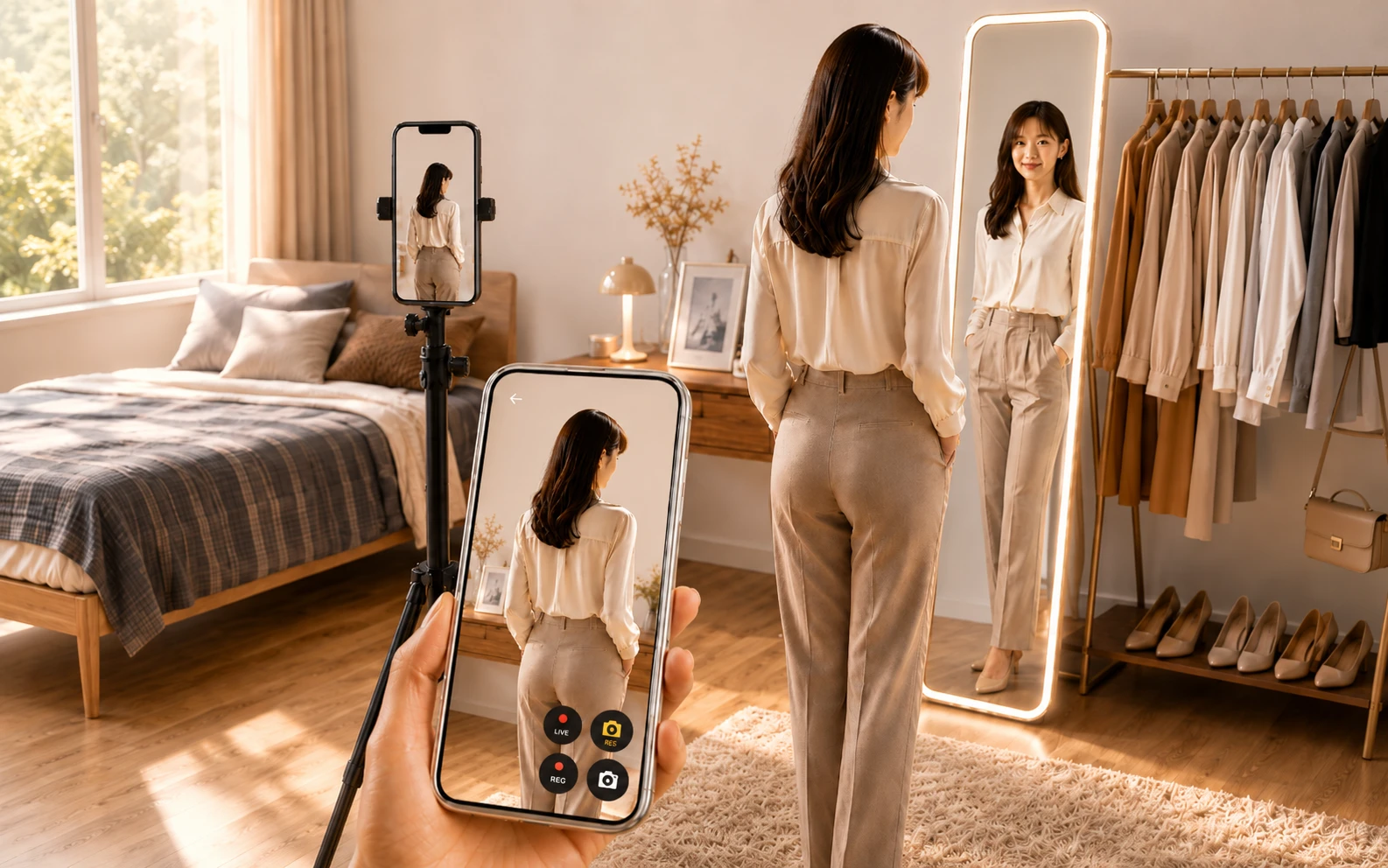
Check details that are hard to see with one mirror, such as shoulder lines, your back view, and overall fit.
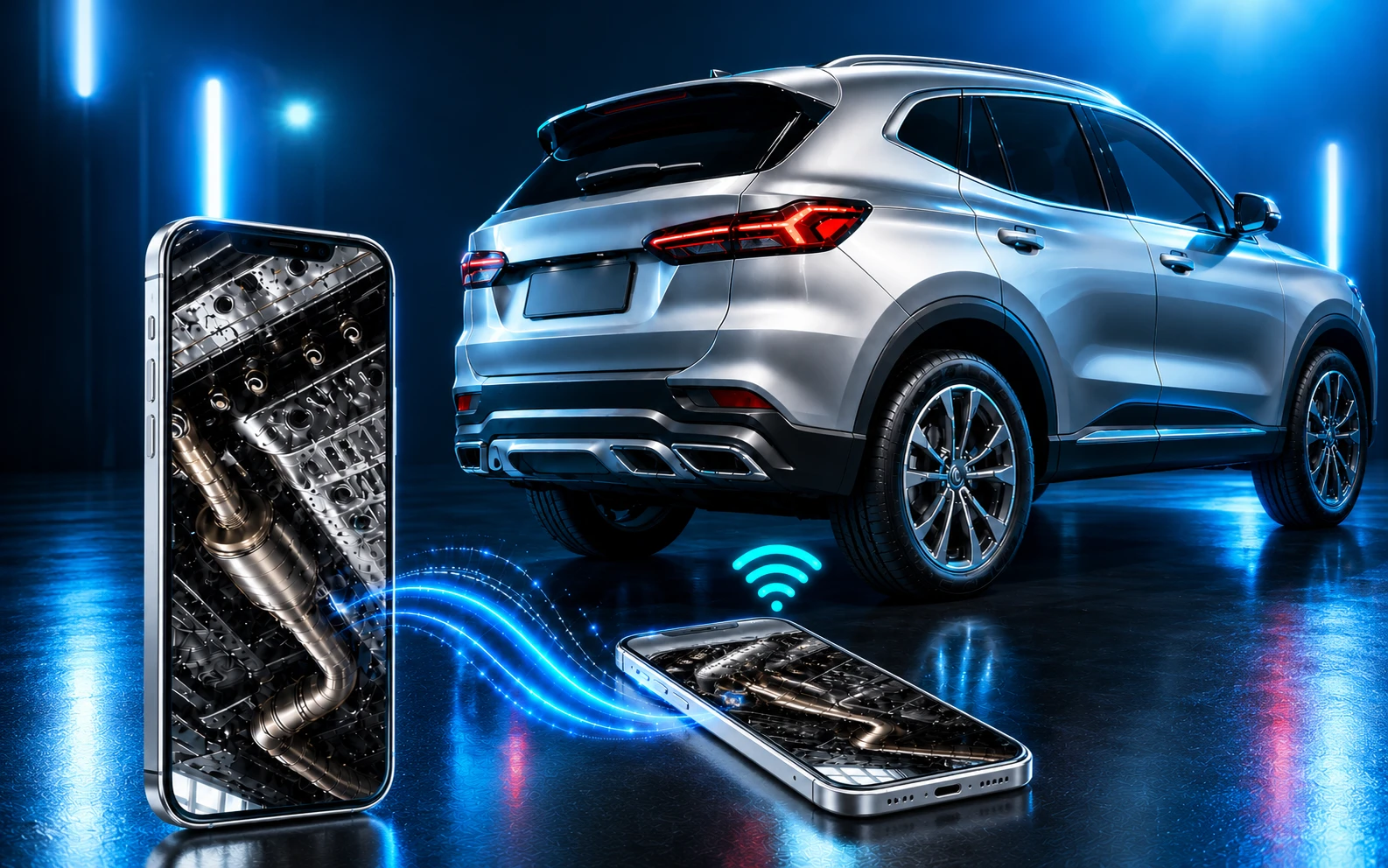
Check hidden areas on screen without bending deeply or lying on the ground.
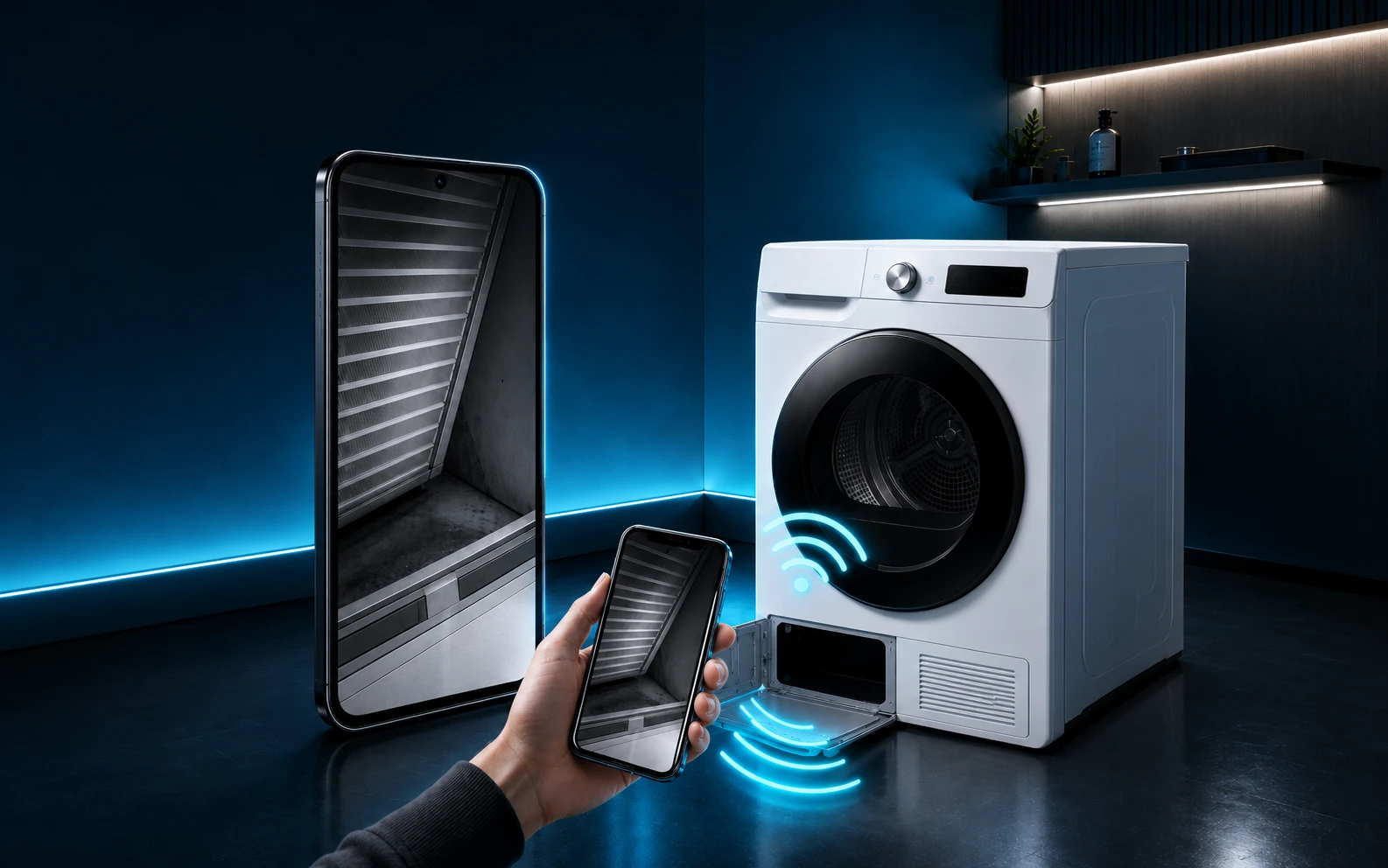
Look into places your hands and eyes cannot easily reach, like under beds, sofas, and behind furniture.
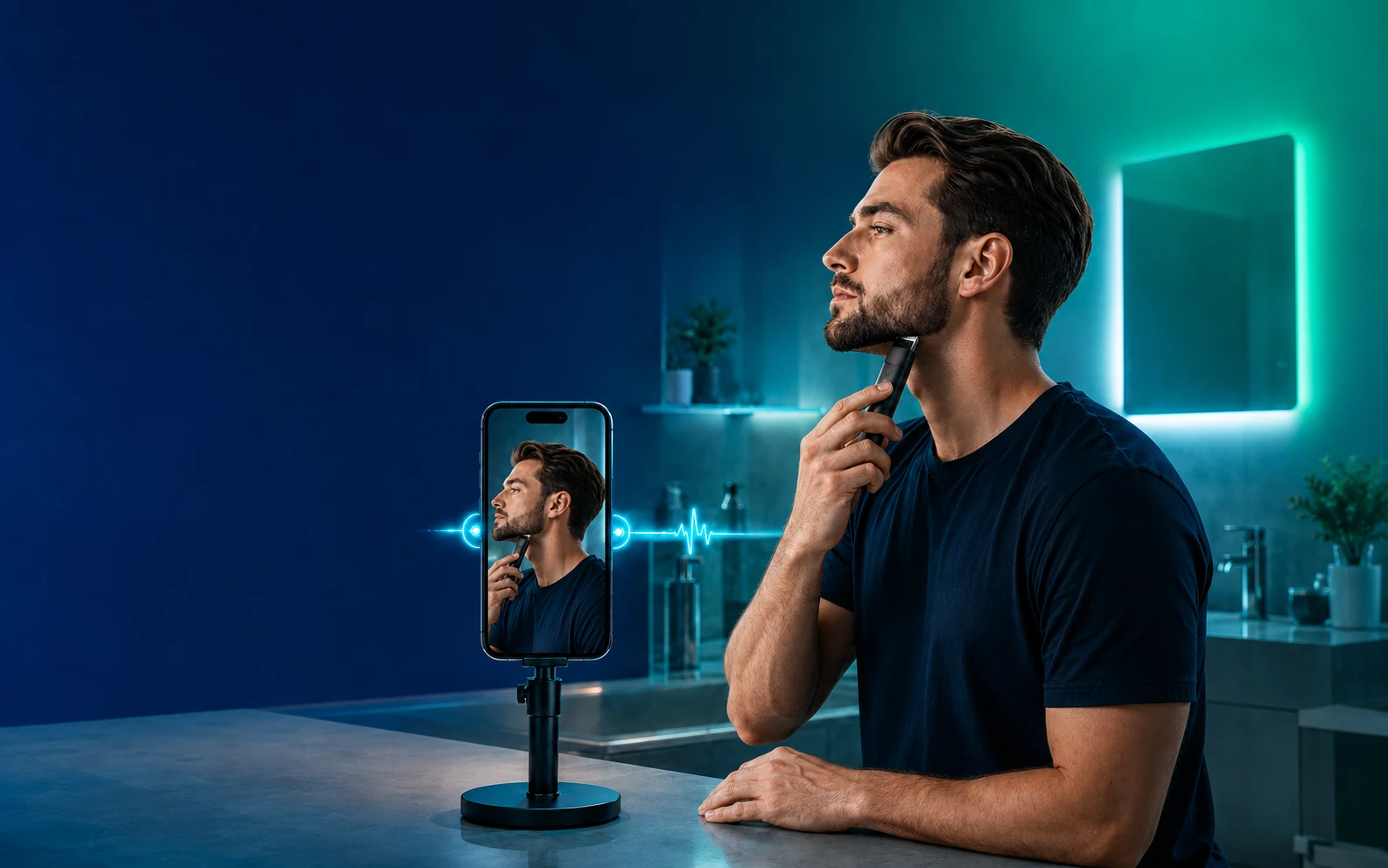
Clearly check areas that are hard to see alone, such as the jawline, sideburns, and side lines.
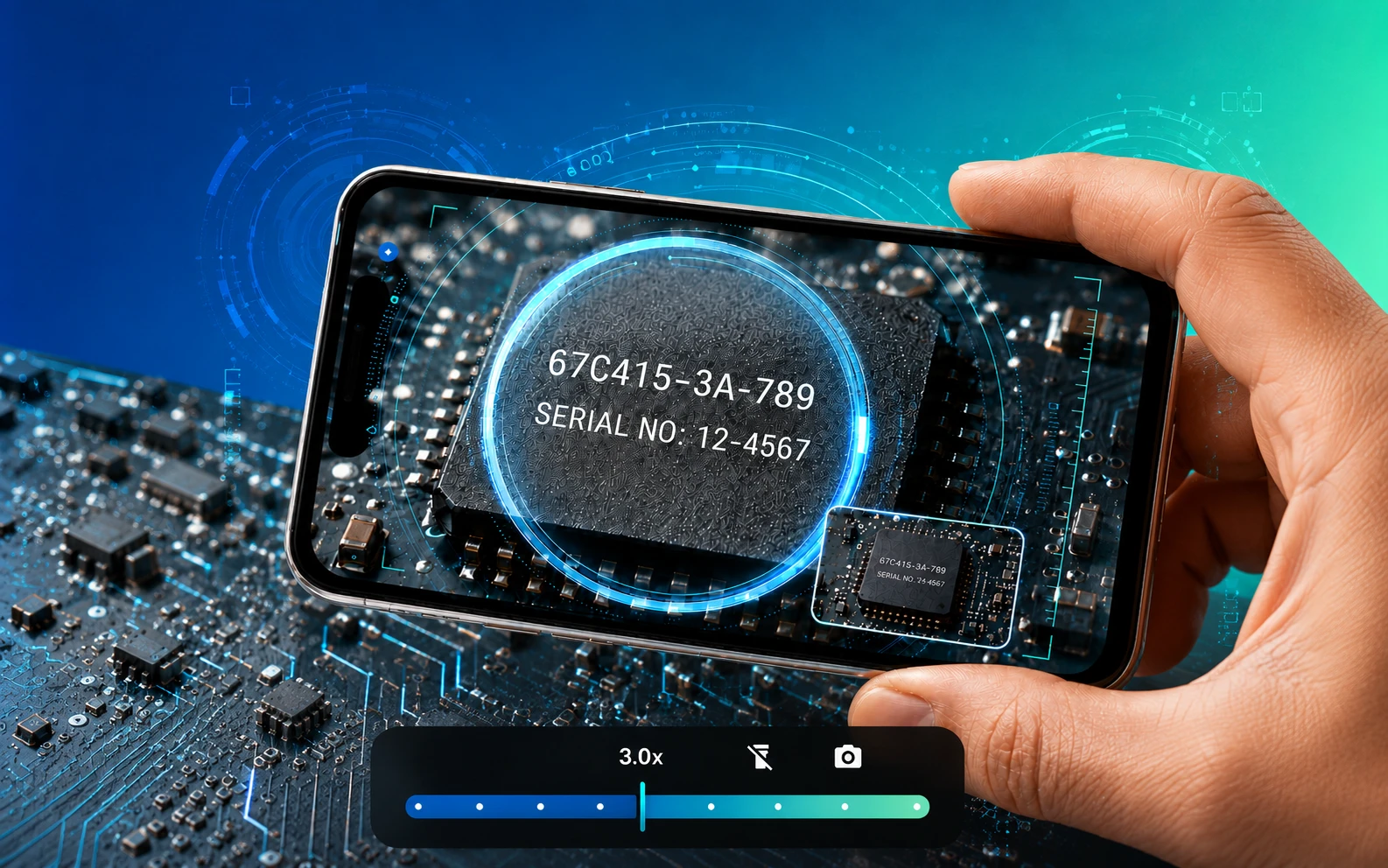
Enlarge fine print, part numbers, and tiny objects on your phone screen.
View the Camera device’s screen in real time on the Viewer device.
Connect by scanning a QR code without typing long addresses or codes.
Choose the right quality for the situation from 240p, 480p, 720p, and 1080p.
Magnify small text and tiny objects even without connecting two devices.
Save the screen you are viewing whenever you need it.
Connect Android and iPhone devices with each other.
Connect with a QR code and view the camera screen on another device right away. Available on Android and iPhone.


Install ViewSide Link on two devices. Create a QR code on the viewing device (Viewer) and scan it on the camera device. No account or login is needed.
We recommend connecting both devices to the same Wi-Fi for stable live video and file transfers. Connection quality and transfer speed depend on your network.
No. The previous 5-minute limit has been removed. You can keep using the connection without rescanning the QR code every 5 minutes.
Yes. Take photos or record videos while watching live. A capture timer and interval capture let you schedule a shot or take photos at regular intervals.
Yes. Select files on the sending device to create a QR code. Scan it on the receiving device and accept the transfer. File transfer is a basic feature.
Yes. Zoom and freeze help you inspect details or a particular moment, and you can save a frozen frame as a photo. Tools such as a magnifier, crosshair and drawing are also available.
Yes. Install the app on each Android or iPhone device to connect them. Keep both apps up to date. Available settings and behavior may vary by device and operating system.
The Viewer and file transfer are basic features. All Pro features are available until in-app purchases are introduced. After that, some features in Pro Settings will require an in-app purchase. See Pro Features & Purchases in the app for details.